Boot
The Boot menu provides options for installing the system bootloader and managing boot configuration files.
This section directly affects system startup behavior and should be used with caution.
The Boot menu is located under:
Settings → Hardware → Boot
Example:
Boot Options
Install to Disk
Installs the system bootloader to a selected disk which will basically copies the contents from your /boot folder to the new drive.
WARNING: After the installation finished, please shutdown or reboot your server immediately since all further changes after Install to disk will not be saved.
The recommended way is:
- Shutdown your server
- Remove the old boot media
- Start your server
- Change the boot order in your BIOS if necessary to boot from the new disk
When clicking Install to Disk, an input form is displayed with the following options:
Device
Defines the target device where the bootloader and files from your existing /boot directory will be installed.
Notes:
- Select the correct disk carefully
- Installing the bootloader may overwrite existing boot data
- After the installation finished, please shutdown/reboot your Server immediately and boot from the new disk
Filesystem
Defines the filesystem used for the boot installation.
Notes:
- Must be compatible with the selected device (for installation to a HDD/SSD/NVME ext4 is the recommended filesystem)
- Existing data on the selected filesystem may be affected
- Please note that if you format a disk in a Linux filesystem type like ext4, btrfs, xfs your drive won't be readable anymore on Windows (there are tools out there which allow you to view/edit such filesystems on Windows)
Extra Partition
Optionally enables the creation or use of an additional partition for usage as a Pool device.
Options:
- Enable
- Disable
If Extra Partition is enabled:
-
The remaining free disk space will be allocated as a separate partition
-
This partition can later be used for:
-
Storage pools
-
Docker data
-
Shares
-
General persistent storage
-
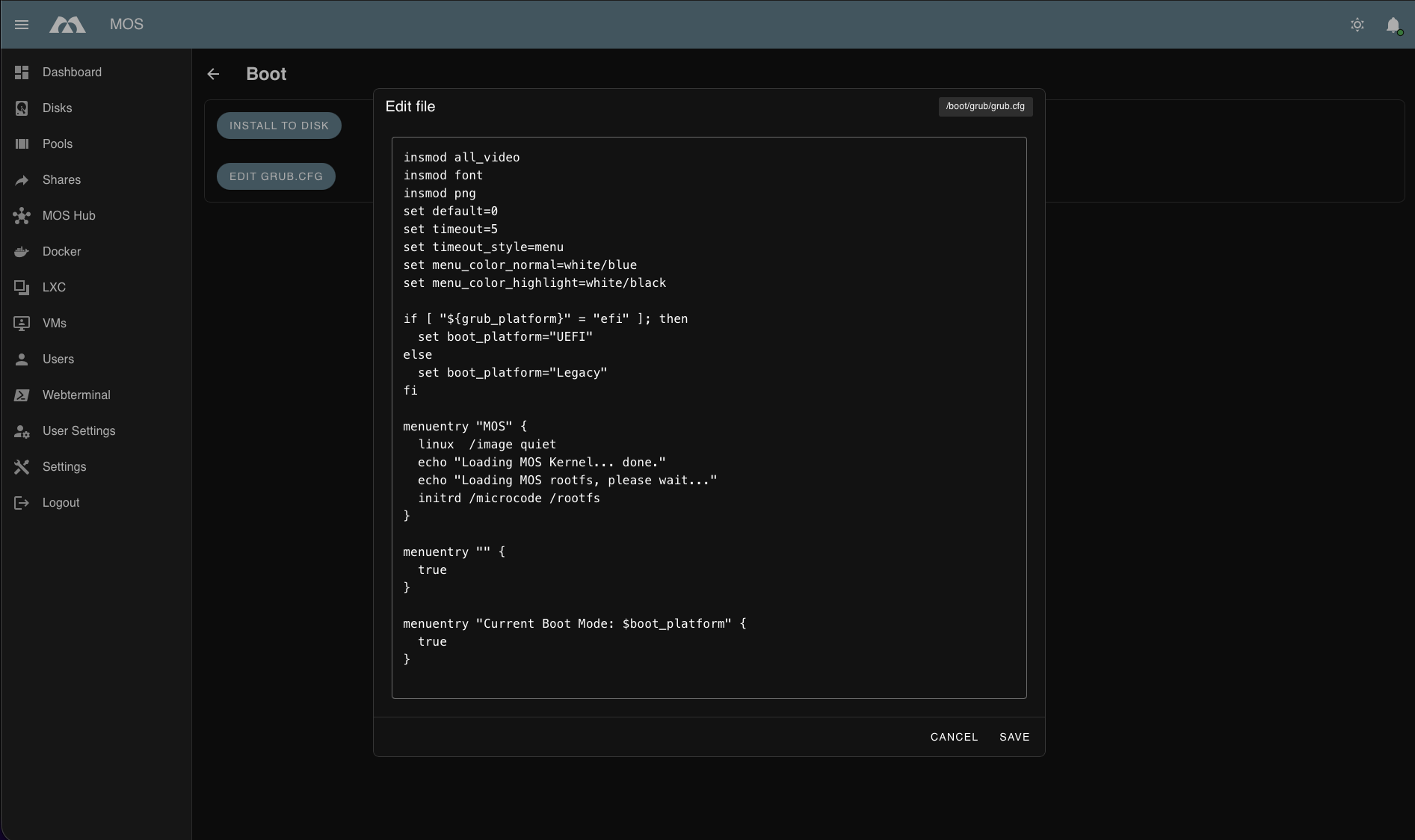
Edit grub.cfg
Opens an editor for the GRUB configuration file:
/boot/grub/grub.cfg
Purpose:
- Modify boot parameters
- Adjust kernel options
- Change boot behavior
Important Warning:
- This file is critical for system startup
- Incorrect changes can prevent the system from booting
Recommendation:
Only edit grub.cfg if you fully understand GRUB configuration and recovery procedures.
Best Practices
- Verify the target device before installing the bootloader
- Backup important data before making boot-related changes
- Avoid manual edits to
grub.cfgunless absolutely necessary - Keep recovery media available when modifying boot settings
Summary
The Boot menu allows low-level control over system startup configuration.
Key points:
- Install the bootloader to a selected disk and filesystem
- Optionally configure an extra partition
- Manually edit the GRUB configuration file if required
- Misconfiguration can affect system bootability
Use this section carefully and only when necessary.
Parts of this documentation were created with the assistance of AI tools. All AI-generated content has undergone review, but it may still contain inaccuracies, omissions, or outdated information.