🖥️ WebUI Overview
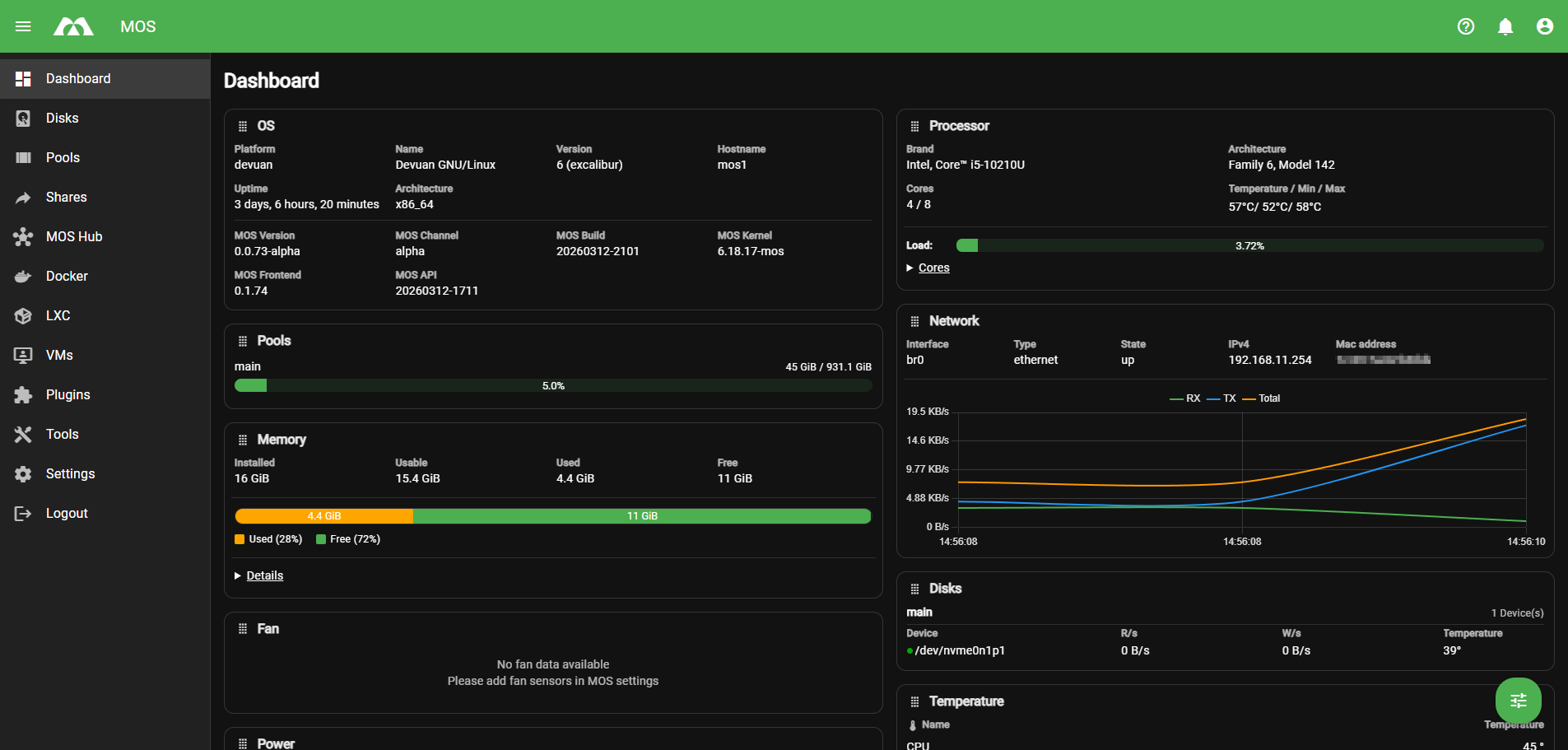
The MOS web interface provides a centralized management dashboard for monitoring system health, managing storage, and operating services such as Docker, LXC, and virtual machines. The interface is divided into three main areas:
| Area | Description |
|---|---|
| Top Bar | Global status and quick access |
| Left Navigation Menu | Main system sections |
| Main Content Area | Detailed views and controls |
🔝 Top Bar
The top bar is always visible and provides quick access to global functions.
- MOS Logo — Returns you to the Dashboard from any page.
- Docs — Direct link to the MOS Docs page for help
- Notifications — Displays system alerts, warnings and important events.
- User Settings — Displays user profile settings such as “Dark Mode”, “Language”, etc.
🧭 Left Navigation Menu
The navigation menu on the left provides access to all major system components.
📊 Dashboard
The main system overview page. This is the first place to check overall system health.
Displays real-time information about:
- Operating system and MOS version
- CPU load and per-core utilization
- Memory usage
- Network traffic
- Storage pool usage
- Disk activity and temperatures
- Sensors
💽 Disks
Lists all detected physical storage devices. Here you can:
- View disk health and temperatures
- Identify devices
🗄️ Pools
Used to create and manage storage pools. From this section you can:
- Create new pools
- Assign disks to pools
- Monitor pool usage and status
💡 Pools are the foundation for shares, containers and virtual machines.
📂 Shares
Manages shared folders provided by the system. Typical use cases:
- Network shares (SMB / NFS)
- Media storage
- Backup destinations
Shares are always backed by a storage pool.
🛒 MOS Hub
Central place for Docker Templates, Docker Compose Templates and MOS Plugins.
🐳 Docker
Manages Docker containers and images. From this section you can:
- Deploy containers
- Start, stop and update services
- Monitor container resource usage
Common use cases include media servers, download services and automation tools.
📦 LXC
Manages Linux Containers (LXC). Used for:
- Lightweight system containers
- Isolated service environments
- Advanced Linux-based workloads
LXC containers behave more like small virtual systems compared to Docker containers.
🖥️ VMs
Manages full virtual machines. Here you can:
- Create and manage virtual machines
- Assign CPU, memory and storage
- Run complete operating systems
Best suited for workloads that require a full OS.
👤 Users
User and permission management. Allows you to:
- Create and manage user accounts
- Assign access rights
- Control permissions for shares and services
🔧 Tools
Provides tools for MOS:
- Power Management (Reboot and Shutdown)
- Terminal
- Filebrowser
👨💻 User Settings
Personal settings for the currently logged-in user. Includes:
- Interface preferences
- Account-related options
⚙️ Settings
Global system configuration. This section is used to configure:
- Network settings
- System behavior
- Security and access control
- Advanced MOS features
🚪 Logout
Ends the current session and returns to the login screen.
📋 Dashboard Panels Overview
The Dashboard displays multiple information panels providing a real-time system overview.
| Panel | Description |
|---|---|
| OS Panel | Displays operating system details, MOS version, kernel, uptime and hostname |
| Processor Panel | Shows CPU model, architecture, temperature, load and per-core utilization |
| Memory Panel | Visual overview of RAM usage, including system processes, Docker, LXC, cache and free memory |
| Network Panel | Displays real-time network traffic for active interfaces |
| Pools Panel | Shows storage pool usage and capacity |
| Disks Panel | Displays disk activity and temperature for active devices |
✅ Summary
The MOS WebUI is designed to provide:
- Immediate visibility into system health
- Clear separation of storage, services and virtualization
- Scalability from simple setups to advanced server configurations
For most users, daily interaction will focus on:
Dashboard → Pools → Shares → Docker → Settings
Parts of this documentation were created with the assistance of AI tools. All AI-generated content has undergone review, but it may still contain inaccuracies, omissions, or outdated information.