📂 Create the First Shares
Shares define how directories on a storage pool are exposed to users and services.
They are typically used for:
- 🌐 File access over the network
- 🐳 Application data
- 🎬 Media libraries
- 💾 Backups
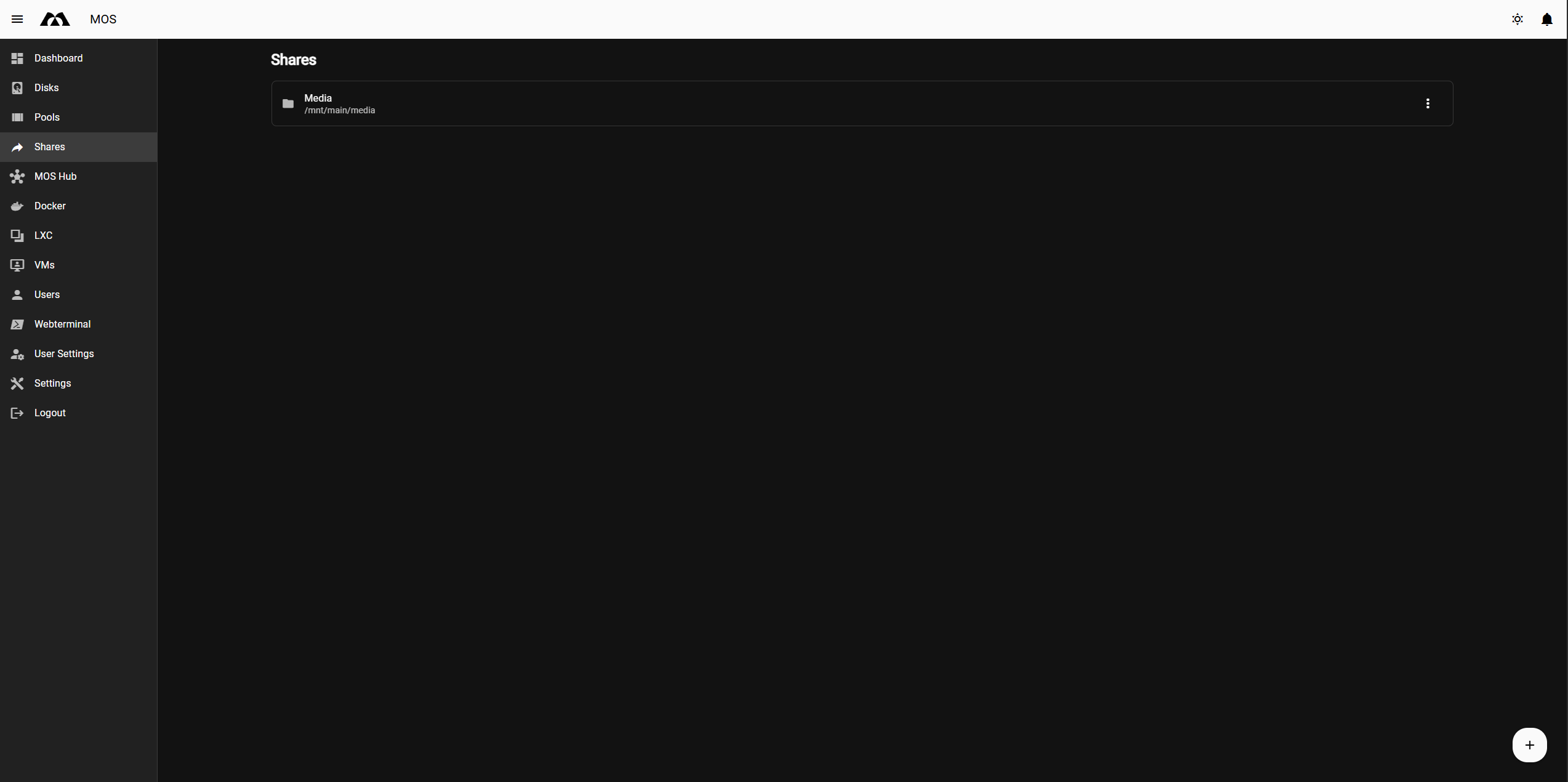
Navigate to:
Shares → Create Share
⚙️ Share Configuration Fields
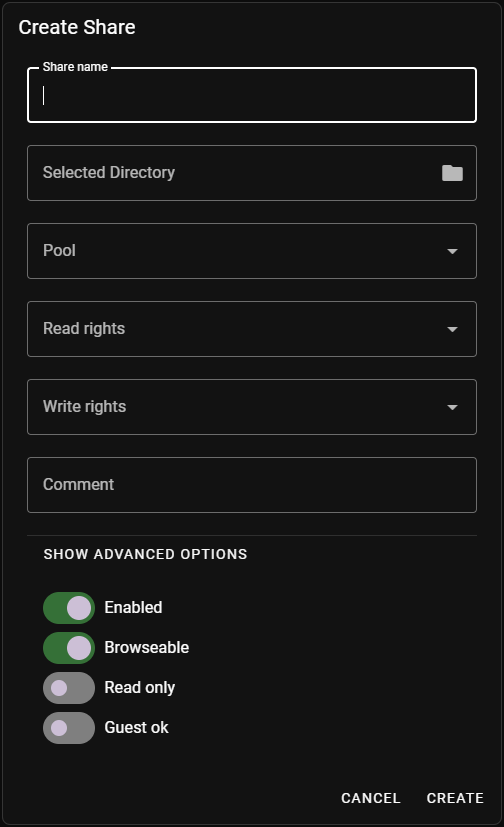
🏷️ Share Name
Defines the name of the share as it appears in the system and on the network.
Best practices:
- Use short, descriptive names
- Avoid spaces and special characters
Examples:
| Name | Use Case |
|---|---|
appdata | Container configuration data |
media | Movies, music, photos |
backup | Backup storage |
downloads | Download staging area |
📁 Selected Directory
Defines the directory path of the share.
- The directory is created automatically if it does not already exist
- The directory name is derived from the selected path
Example:
/mnt/main/media
In this example:
main→ the selected poolmedia→ the directory created for the share
🗄️ Pool
Selects the storage pool where the share will be created.
Example: main
[!NOTE] The share directory will always be created inside the selected pool.
👁️ Read Rights
Defines which users are allowed to read from the share.
- Multiple users can be selected
- If no user is selected, access may be restricted depending on configuration
✏️ Write Rights
Defines which users are allowed to write to the share.
- Only selected users can modify files
- Write access implies read access
💬 Comment
Optional description for the share.
[!TIP] Useful for documenting the purpose of the share, especially in larger setups.
🔩 Advanced Options
🔘 Enabled
Enables or disables the share.
| State | Effect |
|---|---|
| ✅ Enabled | Share is accessible |
| ❌ Disabled | Share is not accessible — data remains untouched |
🔍 Browseable
Controls whether the share is visible when browsing available shares.
| State | Effect |
|---|---|
| ✅ Enabled | Share is visible in network browser |
| ❌ Disabled | Share is hidden but still accessible if the path is known |
🔒 Read Only
Forces the share into read-only mode.
- Prevents any write operations
- Overrides write permissions
👤 Guest OK
Allows access without authentication.
[!WARNING] Enable this option only in trusted networks.
📋 Managing Existing Shares
The Shares overview displays all configured shares.
Each share shows:
- 🏷️ Share name
- 📁 Directory path
- 🗄️ Associated pool

🎛️ Share Actions
Each share provides a context menu with the following actions:
| Action | Description |
|---|---|
| ✏️ Edit | Modify share configuration and permissions |
| 🗑️ Delete | Remove the share |

When deleting a share, an additional option is available:
| Option | Description |
|---|---|
| 🗑️ Delete directory | Permanently removes the share directory and all its contents |
[!CAUTION] This action cannot be undone. All data in the share directory will be permanently lost.

✅ Summary
To create your first share, follow these steps:
- 🏷️ Choose a clear share name
- 🗄️ Select a pool
- 📁 Define the directory path (created automatically if missing)
- 👥 Assign read and write permissions
- 🔩 Adjust advanced options if required
Shares are the primary way to expose storage to users and applications. 🎉
Parts of this documentation were created with the assistance of AI tools. All AI-generated content has undergone review, but it may still contain inaccuracies, omissions, or outdated information.