🚀 Start the First Container
Before running applications in MOS, the Docker service must be configured and enabled.
Containers can then be deployed either manually through the Docker section or via the MOS Hub.
MOS provides two different ways to start containers:
| Method | Description |
|---|---|
| 🐳 Docker | Manual container configuration |
| 🏪 MOS Hub | Template-based container deployment (app store style) |
⚙️ Docker Service Configuration
Before creating any containers, the Docker service must be configured.
Navigate to:
Docker → Docker Service
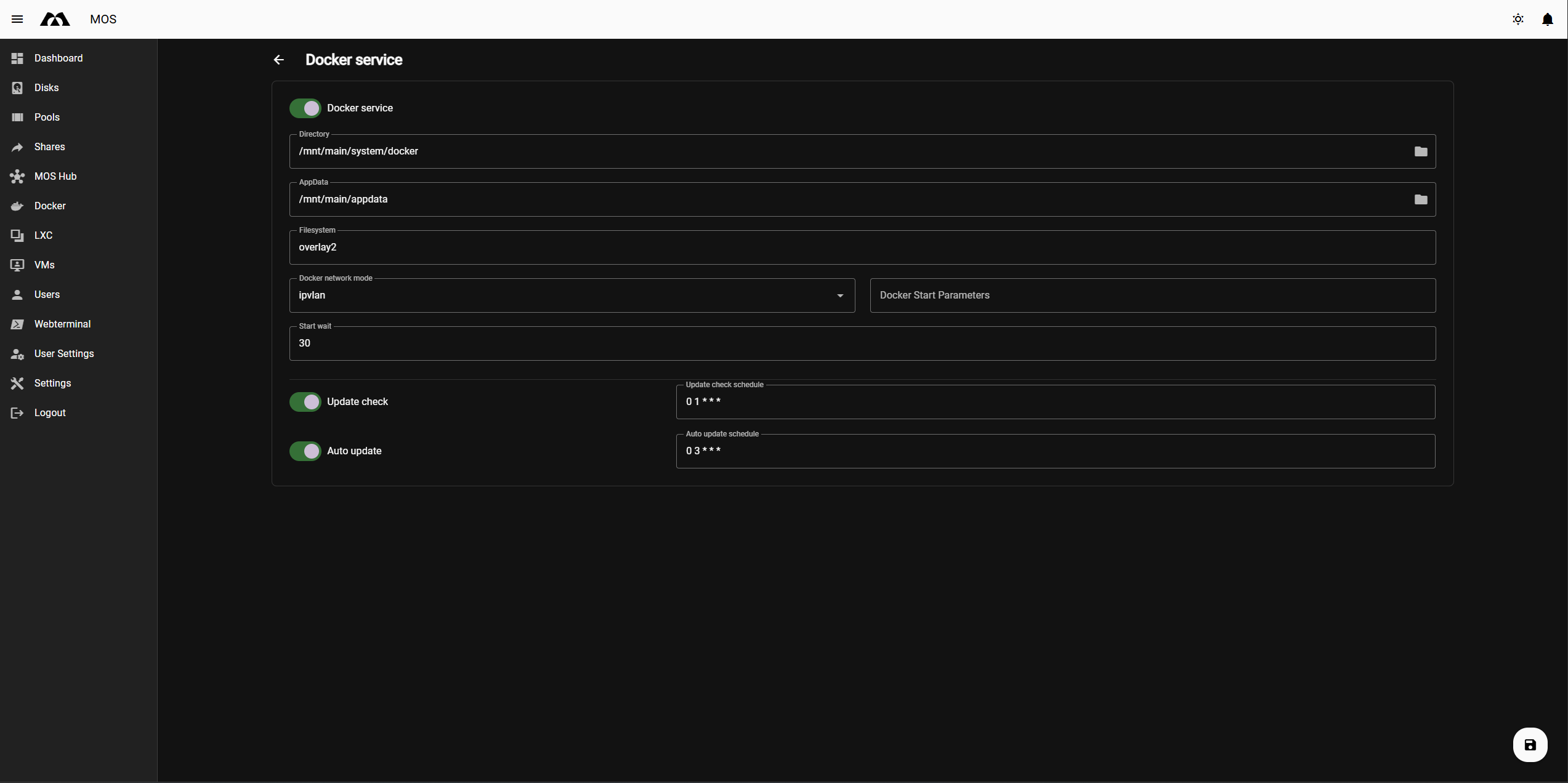
🔘 Docker Service
Enables or disables the Docker engine.
[!IMPORTANT] Docker must be enabled before containers can be created.
📁 Directory
Defines where Docker stores internal data such as images and layers.
Example:
/mnt/main/system/docker
This directory should be located on a fast and reliable storage pool.
[!WARNING] If you plan to put this directory on a mergerfs pool, you must select the real path to a disk from your mergerfs pool, for example:
/var/mergerfs/main/system/docker
💾 AppData
Defines the base path for persistent container configuration data.
Example:
/mnt/main/appdata
[!TIP] This location is critical for container persistence and should be backed up regularly.
🗄️ Filesystem
Defines the Docker storage driver filesystem.
Options:
overlay2(default, recommended)btrfs(if your storage uses btrfs)
[!WARNING] Changing the storage driver requires recreating all containers. To do so safely:
- Stop the Docker service
- Delete the Docker directory (usually inside your
systemfolder)- Change the storage driver
- Re-enable the Docker service
🌐 Docker Network Mode
Defines how Docker networking is handled.
Common options:
ipvlanmacvlanbridge
Choose a mode that matches your network setup and container requirements.
⏱️ Start Wait
Defines the delay (in seconds) before Docker starts during system boot.
Example: 30
[!NOTE] Useful when storage pools or network interfaces need additional time to become available.
🔄 Update Check
Enables automatic checks for container image updates.
⬆️ Auto Update
Automatically updates containers based on the configured schedule.
[!CAUTION] Use with caution in production environments.
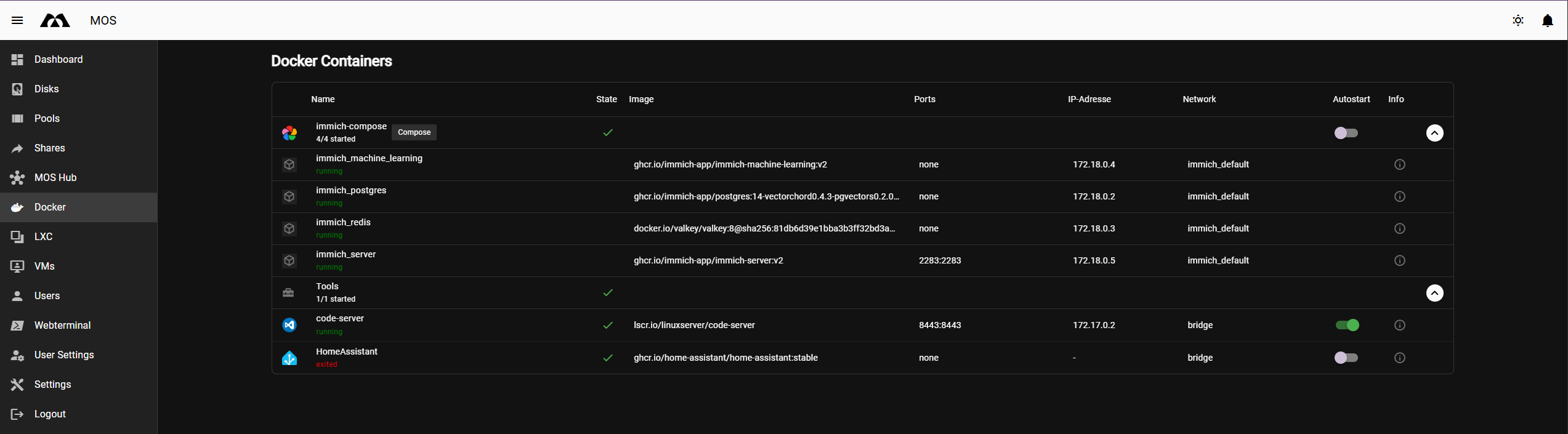
📋 Docker Overview Page
Navigate to:
Docker
This page lists all configured containers and provides an overview of:
- 📛 Container name and state
- 🖼️ Image
- 🔌 Exposed ports
- 🌐 IP address
- 🔗 Network mode
- ▶️ Autostart status
📦 Docker Compose
Navigate to:
Docker → Docker Compose
This allows deploying one or multiple containers using a Docker Compose YAML definition.
Available fields:
| Field | Description |
|---|---|
| 📝 Stack Name | Name of your compose stack |
| 📄 Compose YAML | Your compose file content |
| 🔐 Environment Variables | Variables passed to the containers |
| 🖼️ Icon URL | Icon displayed in the UI |
| 🌍 Web UI URL | Shortcut to the web interface |
[!TIP] Docker Compose is recommended for complex multi-container applications.
🗂️ Docker Compose Stacks
Containers deployed using Docker Compose are displayed as a stack in the Docker overview.
A stack represents a group of containers that belong together and are managed as a single unit.
Example:
immich-compose(4/4 started)

The stack header shows:
- 🏷️ Stack name
- 🔢 Number of running containers
- ✅ Overall stack state
🔍 Expanding Docker Stacks
Docker Compose stacks can be expanded to show the individual containers inside.
Each container within a stack:
- Has its own state
- Can be monitored individually
- Shares the same Compose configuration
This allows visibility into complex applications while keeping the overview clean.

🎛️ Stack Actions
Clicking the stack menu provides the following actions:
| Action | Description |
|---|---|
| ▶️ Start Stack | Starts all containers in the stack |
| ⏹️ Stop Stack | Stops all containers in the stack |
| 🔄 Restart Stack | Restarts all containers in the stack |
| ✏️ Edit Stack | Opens the Docker Compose configuration for editing |
| 🗑️ Remove Stack | Removes the entire stack and all associated containers |
| ⬇️ Pull Stack Images | Pulls the latest images for all containers in the stack |
[!NOTE] Stack actions always apply to all containers within the stack.
🔧 Docker Action Menu
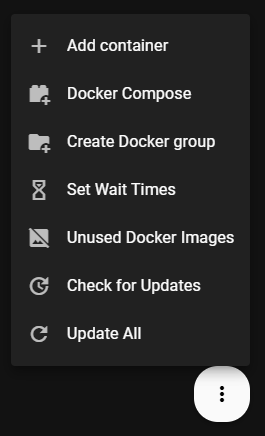
The action menu (three-dot button) provides additional Docker management features.
| Action | Description |
|---|---|
| ➕ Add container | Create a new container manually |
| 📦 Docker Compose | Deploy containers using a Compose YAML file |
| 🗂️ Create Docker group | Organize containers into logical groups |
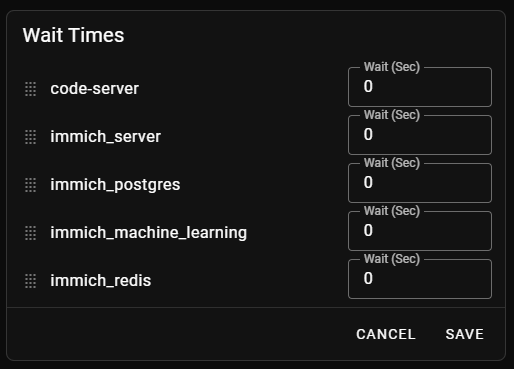
| ⏱️ Set Wait Times | Define startup delays for individual containers |
| 🧹 Unused Docker Images | View and remove unused container images |
| 🔍 Check for Updates | Manually check for available image updates |
| ⬆️ Update All | Update all containers at once |
🖱️ Container Context Menu
Each individual container provides a context menu with management actions.
| Action | Description |
|---|---|
| 🌍 Web UI | Opens the container's web interface (if configured) |
| 💻 Terminal | Opens an interactive shell inside the container |
| ⏹️ Stop | Gracefully stops the container |
| 🔄 Restart | Restarts the container |
| ☠️ Kill | Immediately stops the container without graceful shutdown |
| ✏️ Edit | Opens the container configuration for editing |
| 📜 Logs | Displays the container logs |
| ⚡ Force Update | Pulls the latest image and recreates the container |
| 🗑️ Delete | Removes the container and its configuration |
[!NOTE] These actions apply only to the selected container.

🛠️ Creating a Docker Container (Manual)
Navigate to:
Docker → Add container
📝 Basic Configuration Fields
| Field | Description |
|---|---|
| 📋 Template | Optional predefined template |
| 🏷️ Name | Unique container name |
| 📦 Repository | Docker image (e.g. lscr.io/linuxserver/code-server) |
| 🌐 Network | Docker network to attach the container to |
| 🔒 Custom IP | Optional static IP (depending on network mode) |
| 💻 Default Shell | Shell used for interactive container access |
| 🎮 GPU | Assign GPU resources if supported |
| 🔓 Privileged | Grants extended system permissions — use only if required |
🔩 Additional Configuration
| Field | Description |
|---|---|
| 📁 Paths | Map host directories to container paths |
| 🔌 Ports | Expose container ports to the host |
| 🖥️ Devices | Pass through host devices |
| 🔐 Variables | Environment variables used by the container |
🌍 Web UI URL
Optional shortcut link to the container web interface.
🎨 Icon
Defines the container icon shown in the UI using Material Design Icons (MDI) identifiers.
Example:
mdi-vpn
🗂️ Docker Groups
Navigate to:
Docker → Create Docker group
Docker groups allow logical grouping of containers for better organization.
Configuration options:
- 🏷️ Group Name
- 🎨 Icon (MDI identifier)
- ☑️ Select Containers
▶️ Autostart Behavior
Autostart behavior differs depending on how containers are deployed.
📦 Docker Compose Stacks
- Autostart is controlled at the stack level
- Individual containers inherit the stack behavior
🐳 Single Containers
- Autostart can be enabled or disabled per container
[!TIP] Use stack-level autostart for multi-container applications to ensure proper startup order.
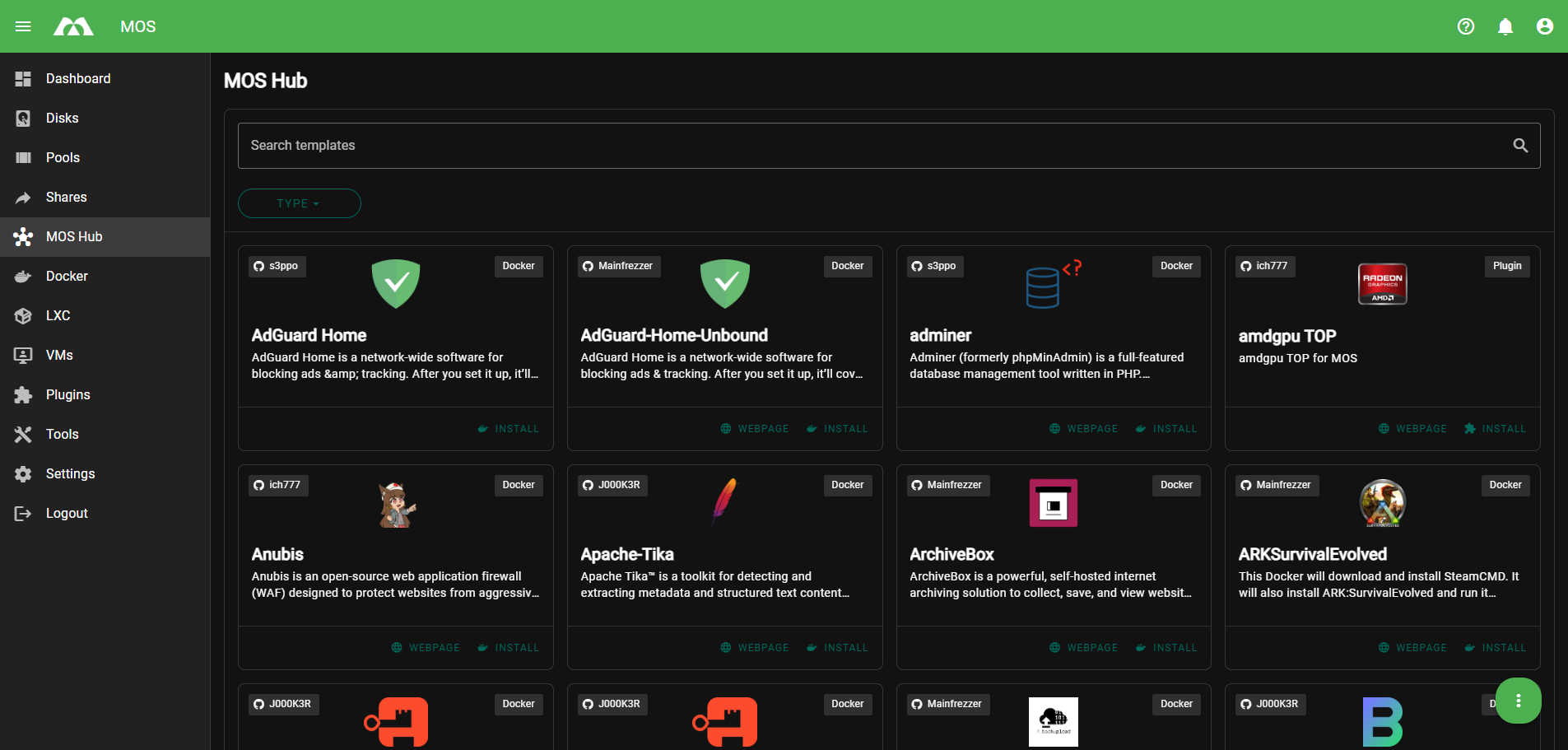
🏪 MOS Hub
The MOS Hub provides a template-based container deployment experience similar to an app store.
Features:
- ✅ Preconfigured Docker templates
- ⚡ Simplified setup process
- 🔧 Automatic path, port, and variable configuration
[!TIP] MOS Hub is the recommended starting point for new users.
✅ Summary
To start your first container in MOS, follow these steps:
- ⚙️ Configure and enable the Docker Service
- 🤔 Choose your deployment method:
- 🏪 MOS Hub — easy template-based deployment (recommended for beginners)
- 🐳 Docker — manual or advanced configuration
- 🔍 Verify storage paths and network settings
- 🚀 Start and manage containers from the Docker overview
Once Docker is configured, MOS becomes a powerful platform for running applications and services. 🎉
Parts of this documentation were created with the assistance of AI tools. All AI-generated content has undergone review, but it may still contain inaccuracies, omissions, or outdated information.