🌐 Network Configuration
MOS provides a flexible network configuration system supporting:
- Multiple network interfaces (Multi-NIC)
- Network bridges
- VLAN configuration
- IPv4 and IPv6 support
- DHCP or static IP configuration
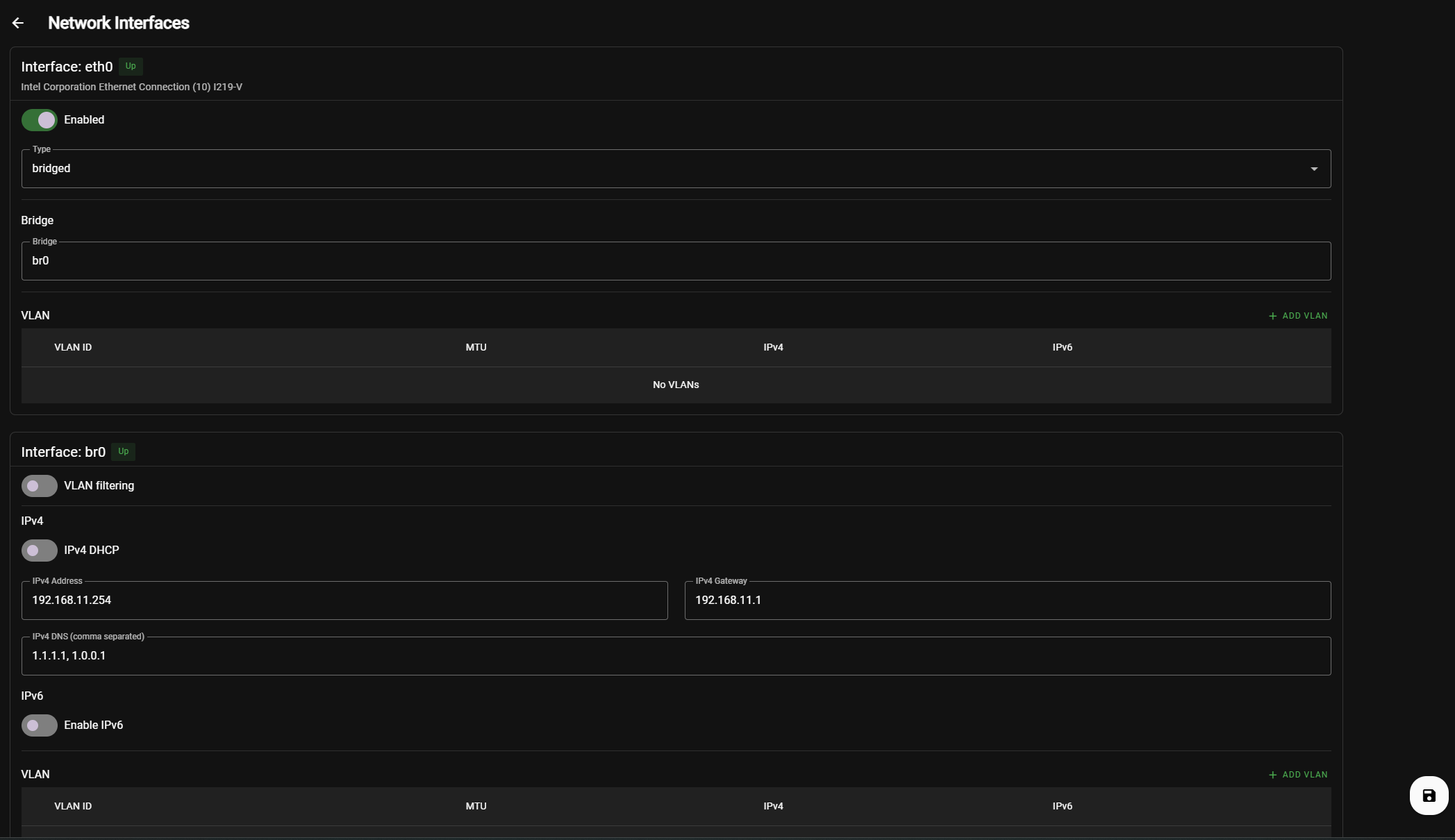
The network configuration can be managed through the MOS WebUI.
Settings → Network Interfaces
This section defines how the system connects to the network and how services such as Docker, LXC, VMs, and Shares are exposed.
Example:
⚠️ Network Configuration Safety
When applying network changes, MOS protects you from accidental lockouts.
After applying a new network configuration:
- MOS starts a 60 second confirmation timer
- You must click Accept to confirm the new configuration
If the configuration is not confirmed within 60 seconds:
- The previous network configuration will be automatically restored
This prevents losing access to the WebUI due to incorrect network settings.
🔁 Confirming the Configuration
After applying changes, the Network Interfaces page must be opened again to confirm the new configuration.
If the IP address did not change:
- Simply reopen the Network Interfaces page
- Click Accept within the 60 second window
🌐 If the IP Address Changed
If the network configuration changes the IP address of the MOS system:
- Open the WebUI using the new IP address
- Navigate again to:
Settings → Network Interfaces
- Click Accept within 60 seconds
You must access the WebUI using the new address before the 60 second timer expires.
⏱ What Happens If You Don't Confirm?
If the configuration is not confirmed within 60 seconds:
- MOS automatically restores the previous network configuration
- The system becomes reachable again via the old IP address
This mechanism ensures you cannot permanently lock yourself out of the system.
Network Interfaces
Each detected network interface can be configured individually.
Typical interfaces include:
- Physical network interfaces (e.g.
eth0,eth1) - Bridge interfaces (e.g.
br0) - VLAN interfaces
Example view:
eth0→ physical network interfacebr0→ bridge used by VMs and containers
🖧 Multi-NIC Support
MOS supports multiple physical network interfaces.
This allows setups such as:
- Separate management and VM networks
- Storage network isolation
- Multiple bridges
- Advanced homelab network topologies
Example:
| Interface | Usage |
|---|---|
| eth0 | Management network |
| eth1 | VM network |
| br0 | Bridge for virtualization |
Interface
Specifies the physical network interface.
Example:
eth0
This is usually the primary Ethernet interface detected by the system.
Type
Defines how the network interface is used by MOS.
The following interface types are available:
ethernet
Uses the physical network interface directly without creating a bridge.
Characteristics:
- Simple and minimal configuration
- Interface receives the IP address directly
- No virtual bridge is created
Use cases:
- Systems without Docker, LXC, or VMs
- Simple standalone servers
- Minimal network setups
Limitations:
- Not suitable for advanced container or VM networking
- Containers and virtual machines cannot be attached directly
bridged (recommended)
Creates a Linux bridge and attaches the physical interface to it.
Characteristics:
- The system and all services share the same network
- Containers and VMs appear as full devices on the LAN
- Required for advanced networking features
Use cases:
- Docker containers with custom networks
- LXC containers
- Virtual machines
- Most server setups
Recommendation: This is the default and recommended mode for most installations.
bond
Combines multiple physical network interfaces into a single logical interface.
Characteristics:
- Increased redundancy and/or throughput
- Multiple NICs act as one interface
- Requires compatible switch configuration
Use cases:
- High availability setups
- Increased network bandwidth
- Multi-NIC servers
Notes:
- Switch-side configuration may be required (LACP or static bonding)
- Misconfiguration can lead to loss of network connectivity
Type Selection Guide
| Scenario | Recommended Type |
|---|---|
| Single NIC, Docker / VMs | bridged |
| Single NIC, no containers | ethernet |
| Multiple NICs, redundancy | bond |
| High-performance networking | bond |
IPv4 DHCP
Enables or disables automatic IPv4 configuration via DHCP.
- Enabled:
IP address, gateway, and DNS are assigned automatically by the network. - Disabled:
Static IPv4 configuration is required.
Recommended:
Disable DHCP for servers and use a static IP address.
IPv4 Address
Defines the static IPv4 address of the system.
Example:
192.168.11.254
This address is used to access the MOS web interface and network services.
IPv4 Gateway
Specifies the default gateway for outbound network traffic.
Example:
192.168.11.1
This is typically the router IP address.
IPv4 DNS (comma separated)
Defines DNS servers used for name resolution.
Example:
1.1.1.1, 1.0.0.1
Multiple DNS servers can be specified, separated by commas.
Enable IPv6
Enables or disables IPv6 support for the interface.
- Enabled:
System will accept and configure IPv6 addresses. - Disabled:
IPv6 traffic is ignored.
Note:
Only enable IPv6 if your network infrastructure fully supports it.
🏷 VLAN Configuration
MOS supports creating VLAN interfaces directly from the WebUI.
To create a VLAN:
Add VLAN
VLAN Settings
| Setting | Description |
|---|---|
| VLAN ID | The VLAN identifier (e.g. 10, 20, 30) |
| MTU | Optional MTU size |
| No IP Assignment | VLAN used only for bridging |
VLAN with IP Configuration
If No IP Assignment is disabled, you can configure:
- IPv4 DHCP
- Static IPv4
- IPv6
This allows MOS itself to communicate within the VLAN network.
VLAN Use Cases
Typical scenarios include:
- Dedicated networks for VMs
- Storage networks
- Management networks
- Segmented homelab environments
Best Practices
- Use a static IPv4 address for servers
- Keep bridged networking enabled for container and VM support
- Configure reliable DNS servers
- Avoid changing network settings remotely without console access
✅ Summary
MOS networking supports:
- Multiple network interfaces
- Bridge networking
- VLAN configuration
- Static or DHCP networking
- IPv4 and IPv6
Network changes are protected by a 60-second rollback mechanism to prevent accidental loss of connectivity.
Parts of this documentation were created with the assistance of AI tools. All AI-generated content has undergone review, but it may still contain inaccuracies, omissions, or outdated information.